Chapters
- Introduction
- What Are Vote Comments?
- Step-by-Step: Enabling Vote Comments
- Best Practices for Vote Comments
- Technical Details and Data Protection
- Frequently Asked Questions
- Next Steps
Introduction
Vote Comments (Comment on Votes) are notes you add at the vote level – not on individual ballots. Use them to document protocols, explain results, and store context that matters later.
This guide shows you how: enable the feature, add comments, export protocols.
What Are Vote Comments?
Comment on Votes vs. Comment on Ballot
It's important to distinguish between two different commenting features in NemoVote:
Comment on Votes (Vote-Level Comments)
- Scope: The entire vote or positions within the election, aggregated without personal references
- Who can add: Primarily admins and board leaders (based on permissions)
- Purpose: Documentation, result explanation, contextual information about the voting process as a whole
- Example: "Motion passed with 87% approval. Next steps: Implementation by June 30, 2026"
Comment on Ballot (Ballot-Level Comments)
- Scope: A single ballot cast by an individual voter, linked to their specific choices
- Who can add: The eligible voter during the voting process
- Purpose: Personal justification, feedback on their choice, qualified voting statement
- Example: A voter writes next to their "No" vote: "This decision conflicts with our Code of Conduct"
→ Learn more: Managing Ballot Comments
In short: Comment on Votes = documenting and recording the election as a whole. Comment on Ballot = voters justifying their personal decision.
Use Cases for Vote Comments
Vote comments are ideal for these scenarios:
1. Board Protocols and Documentation
- Secretaries record decisions: "Agenda Item 5 – Bylaw Amendment passed. Quorum met, full member vote not required."
- Important metadata is preserved for archival purposes
2. Result Explanation and Communication
- Admins add analysis: "Notably higher approval rate than last election. Likely due to information campaign in member newsletter."
- Board chairs add next steps and responsibilities
- Comments later appear in PDF export for board minutes
- You can also share voting results and comments with voters to create transparency
3. Compliance and Audit Trails
- Legal notes: "Vote complies with corporate bylaws §7, subsection 2"
- Regulatory references for later verification
4. Historical Context
- Document external circumstances: "Vote conducted during pandemic, resulting in higher online participation (94%)"
- Explain deviations from historical patterns
5. Reporting and Export
- Comments appear in generated PDF reports
- Enable sustainable knowledge management: Years later, stakeholders understand why decisions were made
Step-by-Step: Enabling Vote Comments
Activate Comments When Creating a Vote
When setting up a new online voting process:
- Open the NemoVote admin dashboard and click Create Vote. For a complete walkthrough of the entire voting process, see Step-by-Step Election Management with NemoVote.
- Fill in basic info (title, description)
- Go to Vote Settings
- Find "Allow Administrator to Comment on Vote"
- Toggle it Yes
- Save the vote configuration
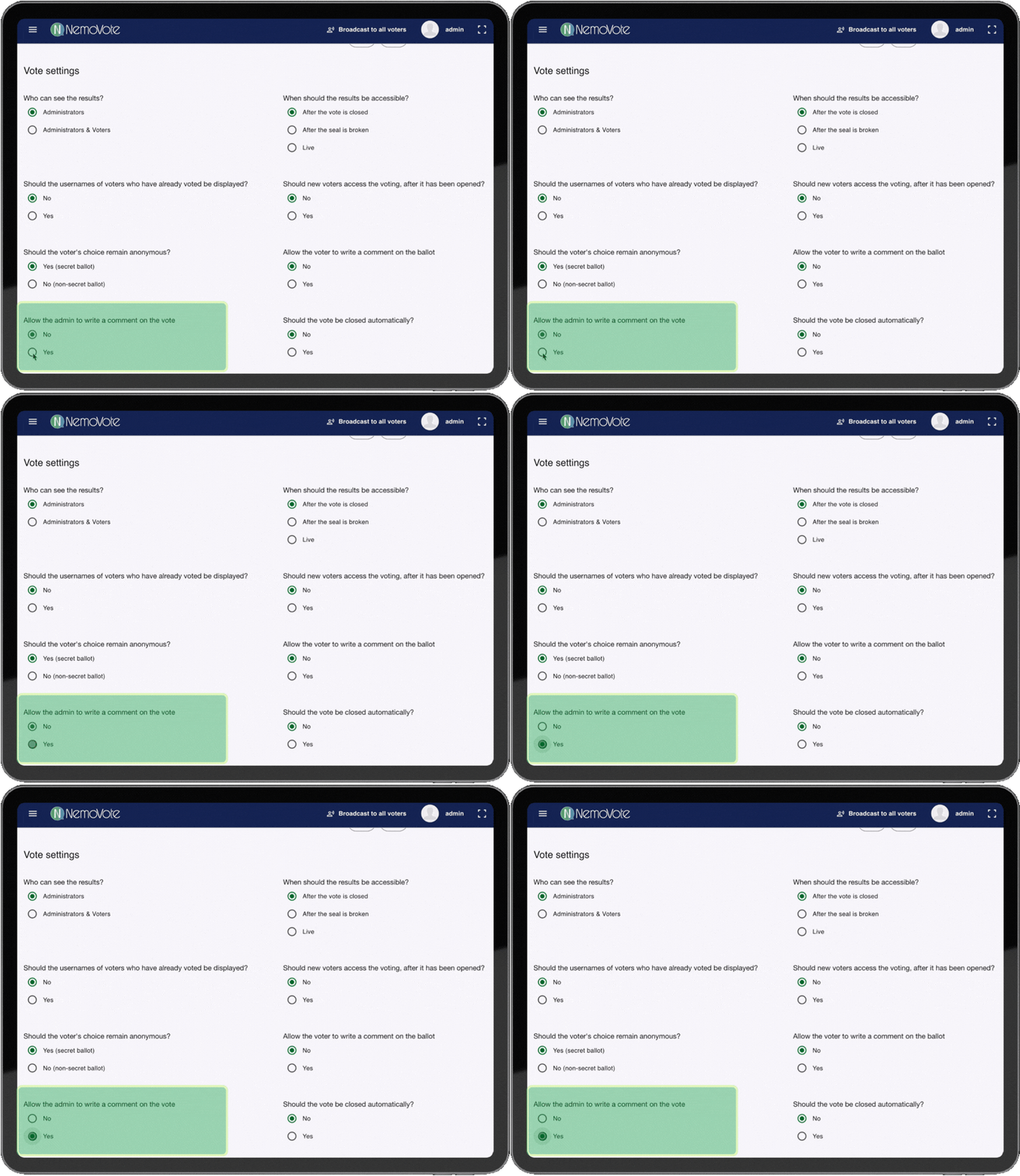
Workflow: Enabling vote comments in Vote Settings
You can also enable vote comments later if the vote is still in Draft status. Once it's open or closed, you can't change this.
For existing votes (Draft status):
- Open the Draft vote
- Click Edit
- Go to Vote Settings
- Enable Vote Comments and save
Adding and Managing Vote Comments
Once vote comments are enabled, you can add and manage them.
Where to Find Vote Comments
After enabling, find the comment feature in the admin dashboard under the vote results. Click the Comments tab or use the context menu (three dots).
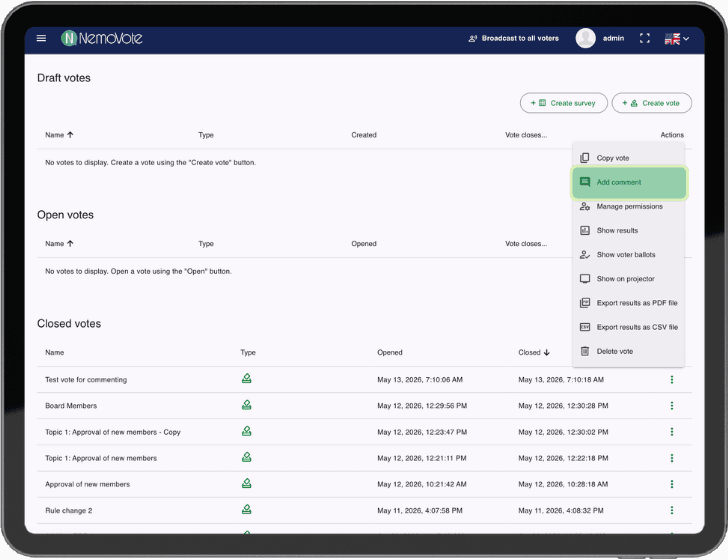
Where to find vote comments in the NemoVote admin interface
Writing and Saving Comments
Adding comments during or after voting:
- View the vote (closed)
- Go to Comments
- Click Add Comment
- Write your text. Include:
- Notes and context
- Links to documents or regulations
- Timestamps (auto-captured)
- Click Save
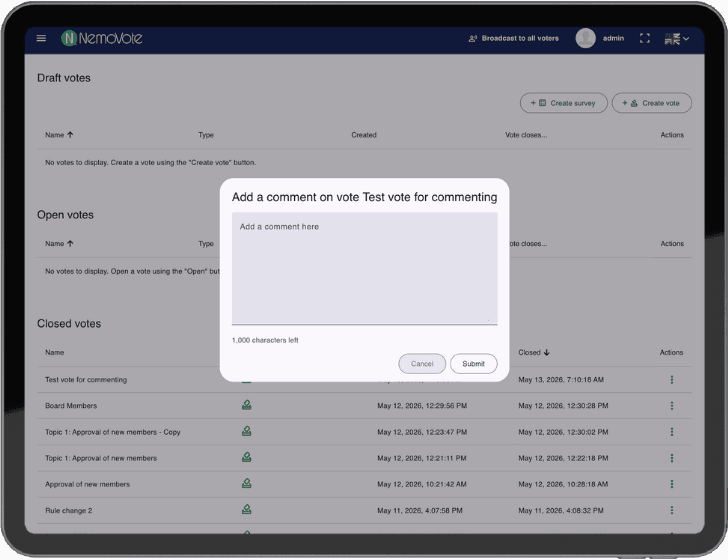
Text field for adding a new vote comment
Comments in the Results View
After adding comments, they show up in the results overview. You can immediately see what notes are attached.
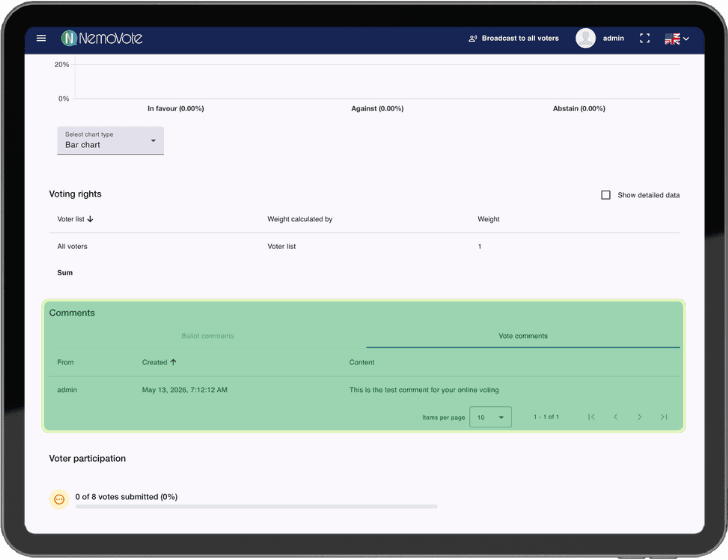
Vote comments in the results view
Editing or Deleting Comments
Comments cannot be edited or deleted. This ensures no data is lost and legal certainty is maintained.
Configuring Comment Visibility
Comments are not visible to voters. However, comments can be exported and shared with voters if needed.
Export and Protocol Documentation
When you export voting results as PDF, vote comments are included in the report. This ensures seamless documentation for board minutes and protocols.
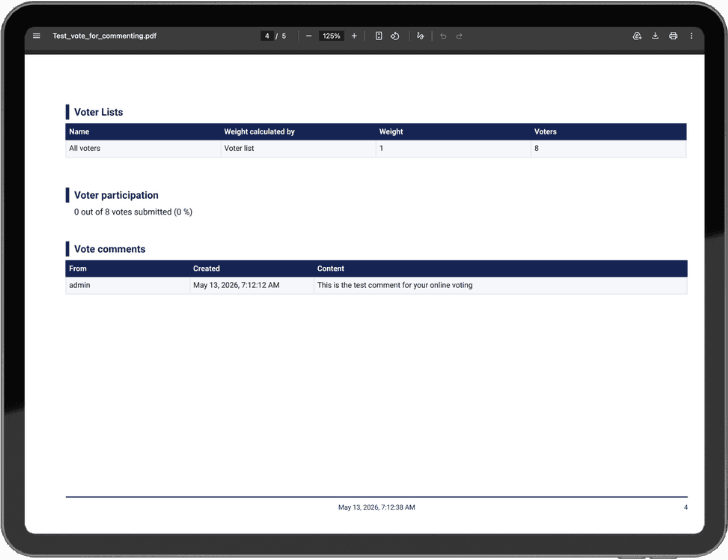
Vote comments in PDF export and protocols
Best Practices for Vote Comments
Structure and Clarity
Use a consistent structure:
[METADATA] Quorum met
[CONTEXT] Vote conducted via Zoom meeting, all technical requirements met
[NEXT STEPS] Implementation by Board Treasurer, report due June 30, 2026
[RESPONSIBLE] Board Treasurer (Sandra Müller)
Timing
- Immediately after close: Add notes while details are fresh
- Before export: Finalize comments before generating PDFs. If you plan to share results with voters or stakeholders, enrich your comments with context before distribution
Confidentiality vs. Transparency
- Admin-only: For internal notes, technical issues, or sensitive context
- Public: Only for information stakeholders should see
Documenting Anomalies
If unexpected results or technical issues occurred, document them:
[ANOMALY] Participation 95% (normally 40–50%). Reason: Required for bylaw change
Legal and Compliance Notes
Reference applicable regulations:
[LEGAL BASIS] Corporate Bylaws §7, subsection 2 (quorum requirements)
[REGULATORY REF] GDPR compliance confirmed (secret ballot conducted)
[VERIFICATION] Election conducted in accordance with all governing documents
Technical Details and Data Protection
Storage and Security
- Encryption: Vote comments are stored in NemoVote's encrypted database
- Access Control: Only admins with appropriate permissions can create comments
- Audit Trail: Every comment is logged (timestamp, author)
Sealed Votes
In sealed voting scenarios, comments remain hidden until the seal is broken. When a vote closes, comments cannot be viewed yet, and admins see an appropriate message in the interface.
Data Retention and Compliance
- Vote comments are archived with voting data
- When a vote is deleted, all associated comments are also deleted
- Review your organization's retention policies (especially for associations, cooperatives, or municipal boards)
Frequently Asked Questions
Next Steps
You're ready to use vote comments now. More resources:
- Ballot-level comments: Managing Ballot Comments
- Vote management: Step-by-Step Election Management with NemoVote
- Export results: Export Results as PDF