Chapters
- Introduction and Overview
- What You Can Customize in Your Profile
- Voter Authentication and Passwords
- Self-Service Voter Management
- Personalizing Your Voting Experience
- Stay Informed and Engaged
Introduction and Overview
In this article, you will learn how to edit and manage your profile settings as a voter in NemoVote.
You can find your profile under "My Profile" in the side bar menu.
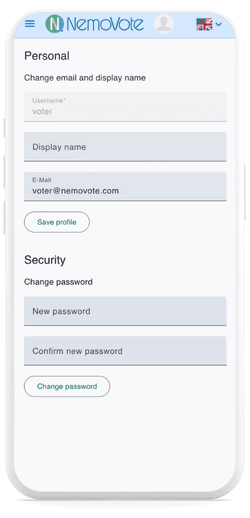
What You Can Customize in Your Profile
In your profile, you can:
- Edit your display name
- Edit your email address (important for receiving password resets and election-related communications)
- Change your password (if applicable)
- Activate Dark Mode
- Set your preferred language
Voter Authentication and Passwords
In most cases, changing your password is not necessary because NemoVote typically uses secure authentication methods like Magic Links or Single Sign On (SSO). Password authentication is only relevant if your administrator has explicitly enabled it for your election.
Self-Service Voter Management
NemoVote empowers you to manage your own access and security settings without relying on administrators. This self-service approach helps you maintain up-to-date information and control your voting experience, increasing security and simplifying election management.
Personalizing Your Voting Experience
You can personalize your voting interface further by:
- Activating Dark Mode to reduce eye strain
- Selecting your language in Multi-language Settings
- Using Full Screen Mode for an immersive voting experience
Stay Informed and Engaged
Keeping your profile information current helps ensure you receive all important communications and ballot access seamlessly. You can also view voting results through your interface as explained in Viewing Voting Results.